Every business has a day when something disappears. A team member deletes the wrong customer, an import overwrites a column, or you simply want a copy of everything before a big clean-up. On that day, what matters is whether you have a recent copy of your data and how easily you can bring it back.
Lead10 gives you three layers of protection: backups you download yourself, backups sent automatically to your own Google Drive or Dropbox, and our own nightly backups of every account. This guide walks through each one.
What a Lead10 backup holds
A backup is a ZIP file with one spreadsheet (CSV) for each kind of record: customers and their contacts, leads, products, quotes, invoices with their lines, payments, subscriptions, tasks, calendar events, expenses, support tickets, inbox conversations and messages, ads, campaigns, social posts, affiliates and notes. Your lists and settings, such as lead statuses, taxes and custom fields, are always included.
The spreadsheets open in Excel or Google Sheets and use plain column names like "Customer name" and "Invoice no.". Records are linked by their reference, such as the invoice number or the staff member's email, so each file makes sense on its own.
What is never in a backup: passwords, two-step codes, API keys, and the connection details of your WhatsApp, email, ad and payment accounts. Images and files stay in your Lead10 storage.
Make a backup and download it
Open Settings → Backup. You need to be an admin with permission to manage backups.
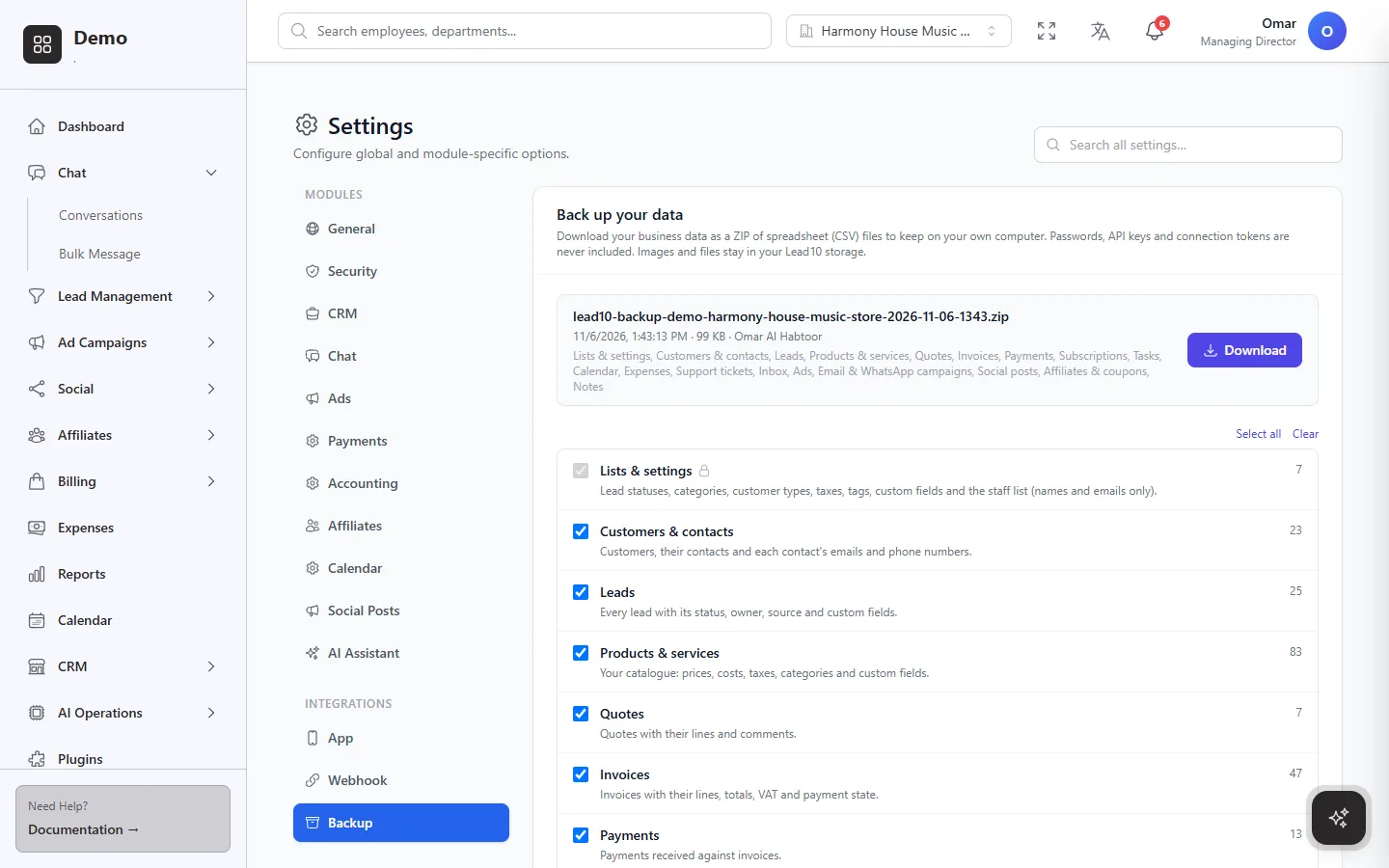
Tick what to include. Every part of your account is listed with the number of records in it. Lists and settings are always included, because everything else refers to them.
Protect the file with a password if you like. Nobody, including our team, can open or restore it without that password, so keep it somewhere safe.
Click Create backup. Lead10 builds the file in the background; you can carry on working, and you get a notification when it is ready.
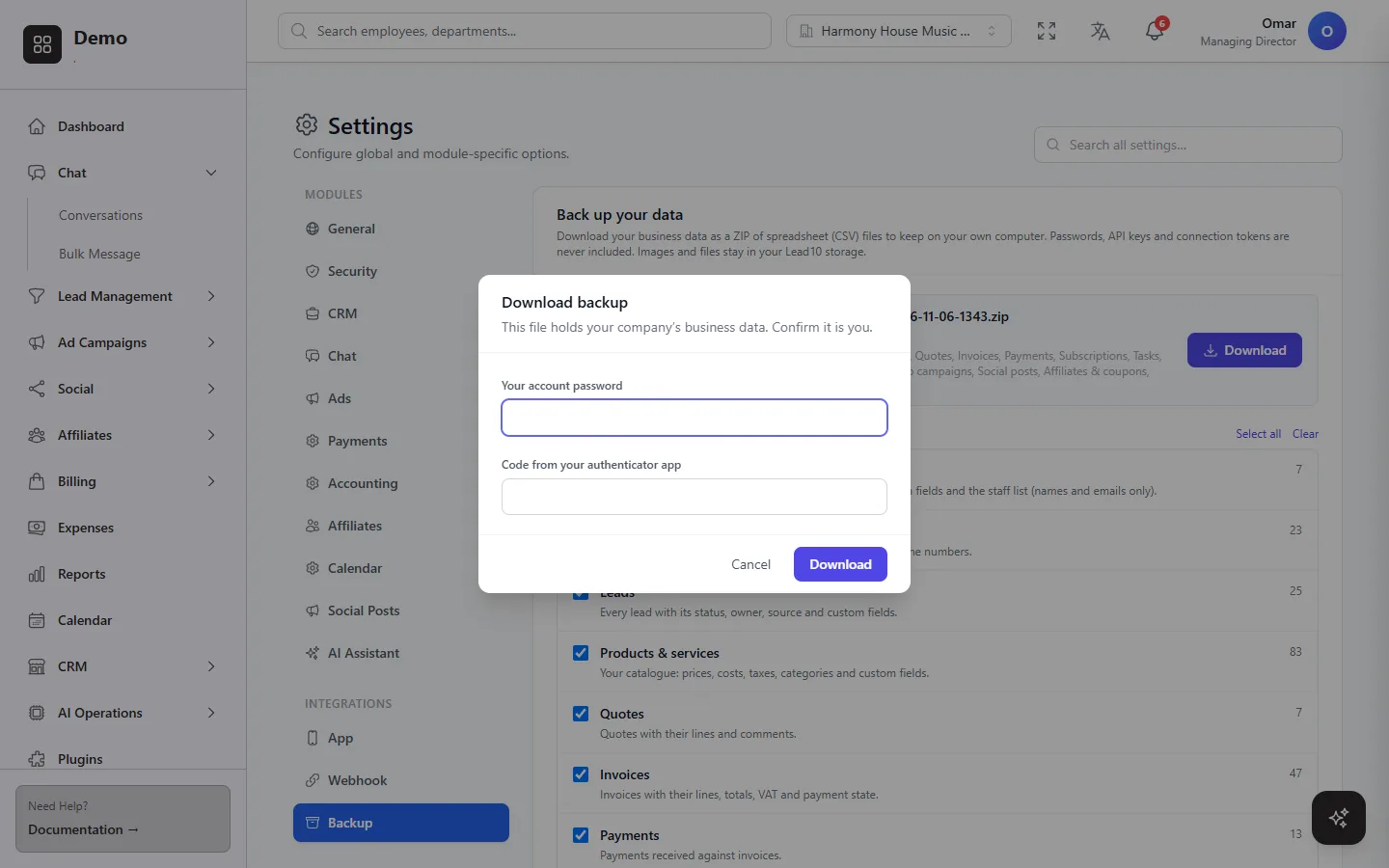
Click Download. Because the file holds your whole company's data, Lead10 asks for your account password first, and your two-step code if you use one.
Lead10 keeps only your latest backup. A new one replaces it once it is ready, so a backup that fails never removes the last good one, but keep the copies you download if you want a history.
If your account has more than one business branch, a backup covers the branch you have selected at the top of the screen. Make one for each branch.
Send a backup to Google Drive or Dropbox automatically
A backup you have to remember to make is a backup you will forget. Under Automatic backup, connect your own Google Drive or Dropbox and Lead10 sends a backup there on a schedule.
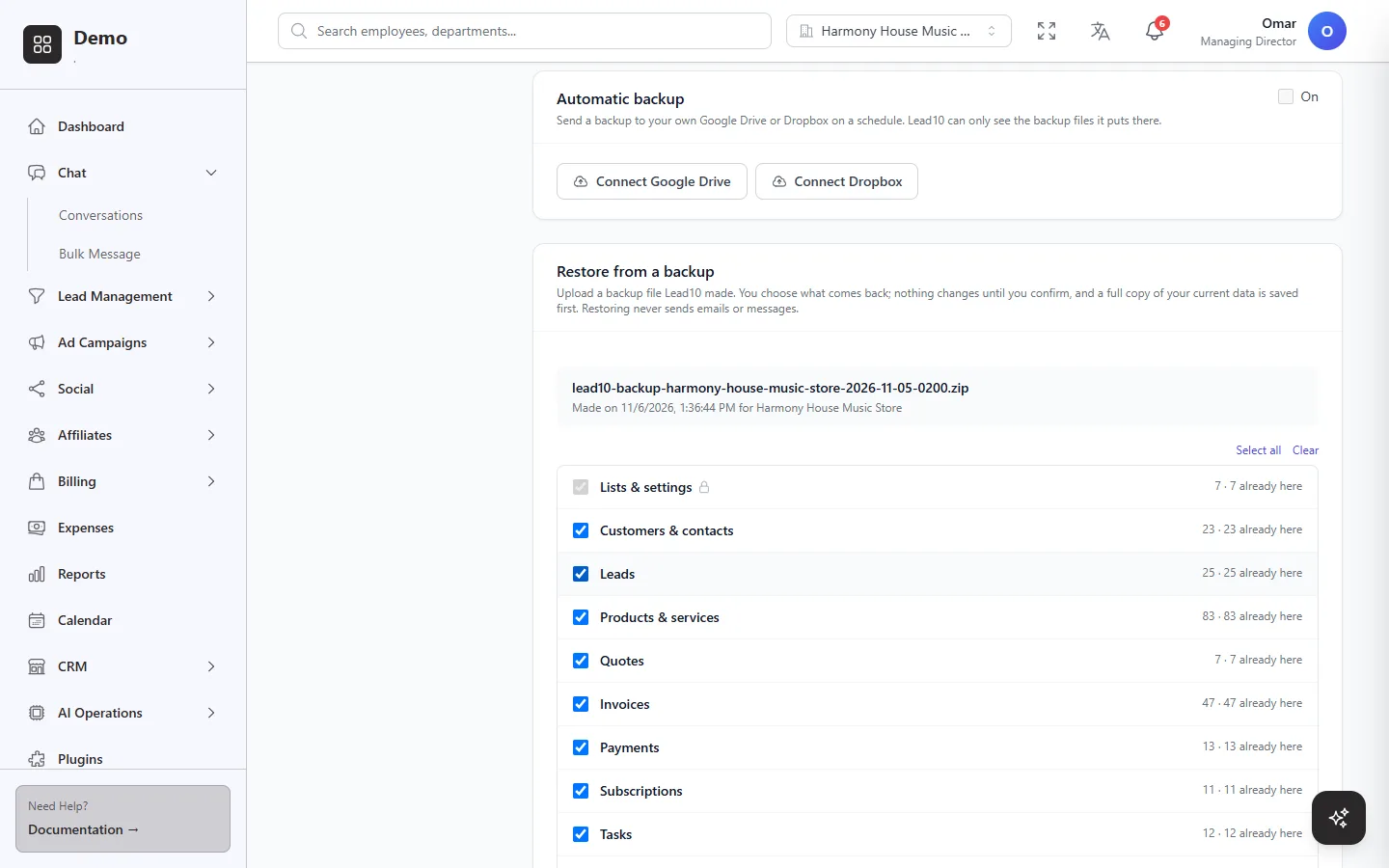
Click Connect Google Drive or Connect Dropbox, confirm your password and sign in to that account.
Choose how often: every day, every week on a day you pick, or on the 1st of every month, at the hour you choose.
Choose how many backups to keep there (up to 30). Lead10 removes the oldest one each time it adds a new one.
Choose what to include and, ideally, set a password for the files.
Switch it on and save. Back up now makes the first one straight away.
Lead10 can only see the backup files it puts in your Drive or Dropbox, never the rest of your files. Backups go into a "Lead10 Backups" folder in Google Drive, or Lead10's own app folder in Dropbox, with one folder per branch. If the connection stops working or your storage is full, you are told so you can fix it. And because this setting decides where your company's data goes, every admin who manages backups is notified when it is switched on or pointed somewhere new.
Restore records from a backup
Under Restore from a backup, choose a backup file Lead10 made. Lead10 first checks it: that it is a genuine Lead10 backup, that nothing in it was changed afterwards, and, if it is protected, that you have its password. A file edited by hand is refused; to bring in edited spreadsheets, use Import, which checks every row.
You then see what the file holds: each part of your account, the number of records in the backup and how many of them are already in your account.
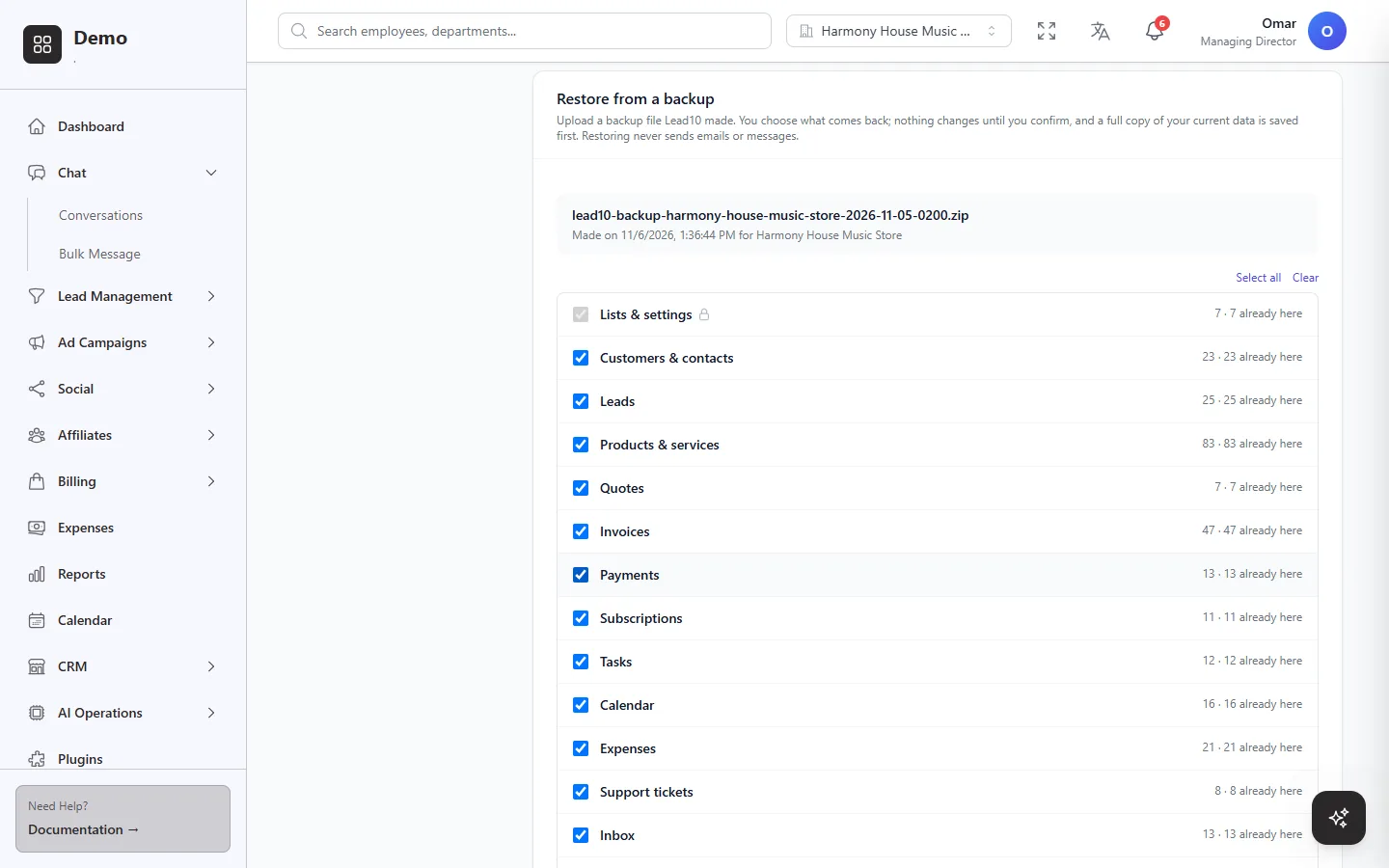
Untick anything you do not want back. If the backup comes from another branch or account, or mentions staff or WhatsApp numbers that are not set up here, Lead10 says so before you start.
Then choose what happens to records that are already in your account:
Leave them as they are adds only what is missing and brings back deleted records. Anything you changed since the backup stays as it is. This is the safe choice.
Overwrite them with the backup puts every matching record back to the values in the backup.
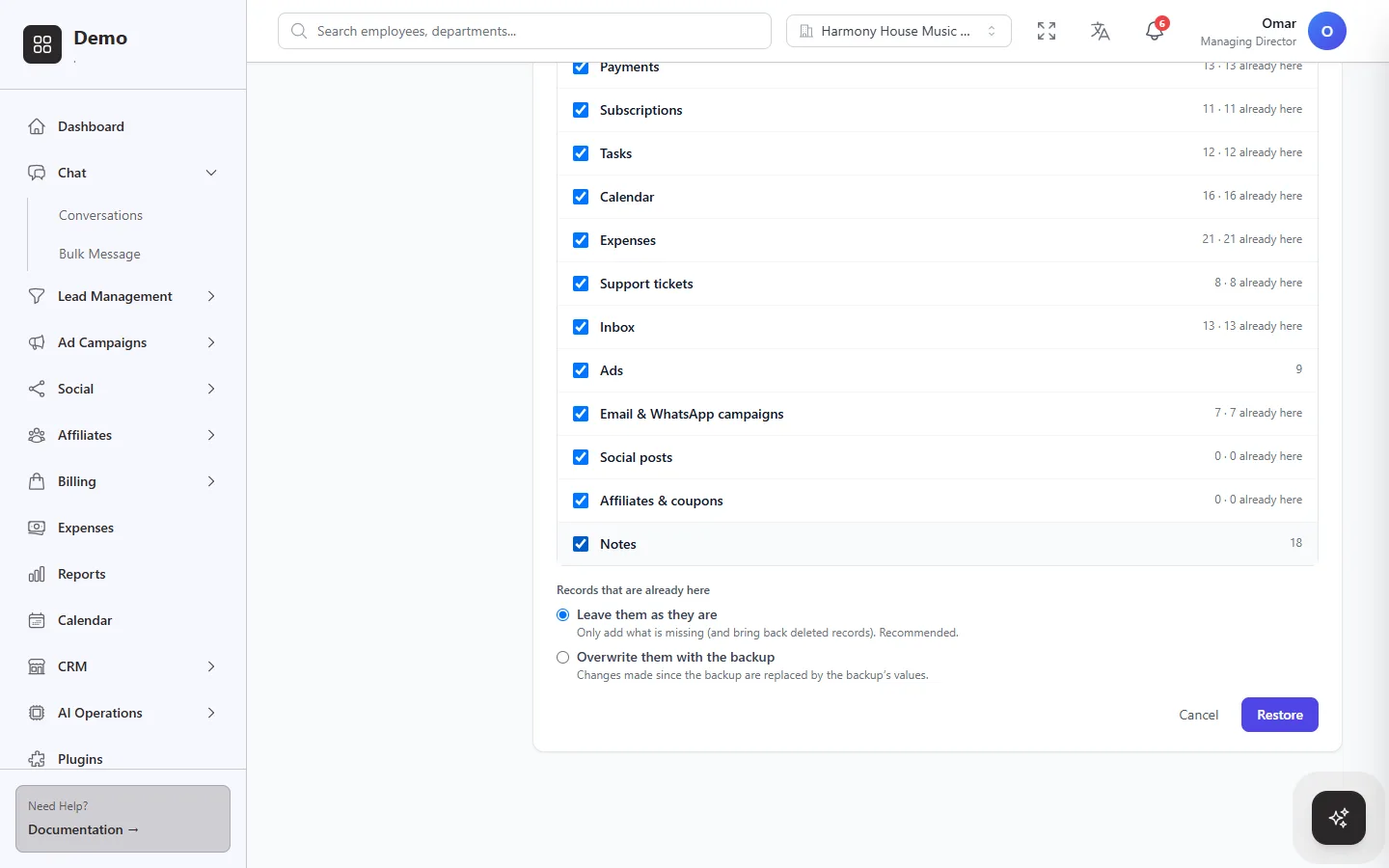
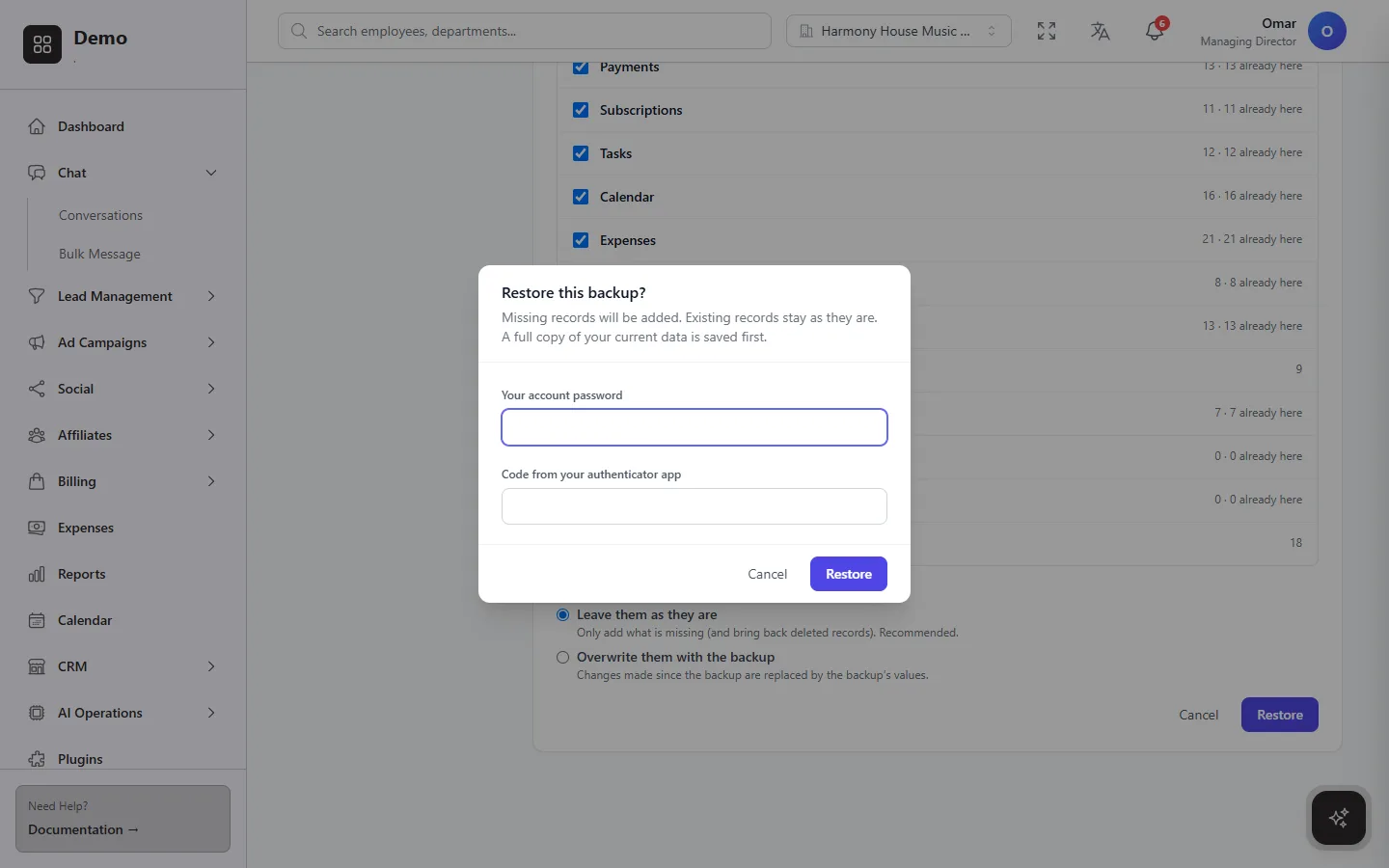
Click Restore and confirm with your password. Before anything is written, Lead10 saves a full copy of your current data and keeps it for 14 days, so if a restore was a mistake our team can put your account back as it was just before.
What a restore does and does not do
Records come back exactly as they were. Invoices keep their numbers, totals, VAT and paid amounts, and leads keep their owner and status, matched to your staff by email.
Nothing is sent. Restoring never emails or messages your customers and never triggers your automations.
Nothing goes out by surprise. Email and WhatsApp campaigns come back as drafts, unpublished social posts as drafts, and automation rules switched off.
Connections come back by reconnecting. Conversations return only into WhatsApp numbers and inboxes connected in your account. Ad campaigns are kept in the backup for your records; the live campaigns stay in your Google and Meta ad accounts.
When it is done you get a notification and a report: how many records were added, updated, brought back from the bin or left as they were, with a downloadable list of any rows that could not be restored and why.
Our nightly backups: your safety net
Whatever you do yourself, Lead10 also backs up every account every night. The backup is encrypted and stored away from the servers your account runs on, and we keep the last 5 nightly, 2 weekly and 3 monthly copies. Every month we restore one into a test system to make sure they work.
If something goes badly wrong and you need your whole account put back as it was on one of those dates, our team can do it for you as a one-time paid service. Contact us with the date you need.
A simple routine
Switch on automatic backups to your Google Drive or Dropbox, weekly at least, with a file password.
Download a backup before big changes, such as a large import, a clean-up of old leads or a change to your custom fields.
Keep the password somewhere safe, such as your company's password manager.
For the short answers, read How do I back up my Lead10 data? and How do I restore my data from a backup?, or see everything Lead10 does.