Most advertising is aimed at strangers. You describe the kind of person you want — an age range, a city, a few interests — and hope the platform finds them. But you probably already have a list of people who are far more likely to buy: past customers, people who enquired and never went ahead, guests from your last event.
Google and Meta both let you upload that list and do one of two things with it: show your ads to those people only, or exclude them, so ads meant for new customers stop reaching people who already bought. This guide explains how both work, what to prepare, and how to set them up step by step.
When advertising to your own list makes sense
Win back past customers with a new product, a service reminder or a returning-customer offer.
Follow up enquiries that went quiet — people who asked about a price but never booked.
Promote an event or launch to the people most likely to come.
Upsell existing customers to a bigger package or a related product.
Leave customers out of ads meant for new people, so you stop paying to reach someone who already bought. See how to exclude an audience below.
How it works
On Meta (Facebook and Instagram) an uploaded list is called a Custom Audience; on Google it is Customer Match. You send each person's email address, phone number and, for Meta, their name. The platform compares them with the details its own users signed up with and builds an audience from the people it recognises.
The details are not sent as plain text. Before upload, every email, phone number and name is turned into an unreadable code (a SHA-256 hash), the format both platforms require. Google and Meta compare codes with codes, so they never receive your contact list itself.
Once the list is built, you choose how each campaign uses it: show to (only people on the list can see the ad), keep out (people on the list never see it), or on Google also observe (everyone can see the ad, and Google reports how your list responds).
Before you start
Permission. Only upload people who agreed to hear from your business, and follow the privacy rules where you and your customers are.
Size. Meta needs at least about 100 matched people before it will show ads to a list. Google needs about 1,000 for Search and YouTube, and about 100 for Display. Since not everyone matches, start with a few hundred contacts or more, and more than a thousand for Google Search.
Google eligibility. Google allows Customer Match only on ad accounts with a good history of policy compliance and payment. If Google refuses the list, that is a restriction on the ad account.
Access. You need admin access to the Google Ads or Meta ad account you will advertise from.
How to set it up in Lead10
Step 1: Prepare your file
Save your contacts as a CSV file with the columns email, phone, first_name and last_name. Each person needs at least an email or a phone number; the more details you give, the more people match. The upload screen lists every column name it accepts and offers a sample file to start from.
Write every phone number with its country code, such as +971501234567 or +919876543210. If you work in Excel, format the phone column as text before you save: otherwise Excel turns long numbers into something like 9.72E+11 and the digits are lost.
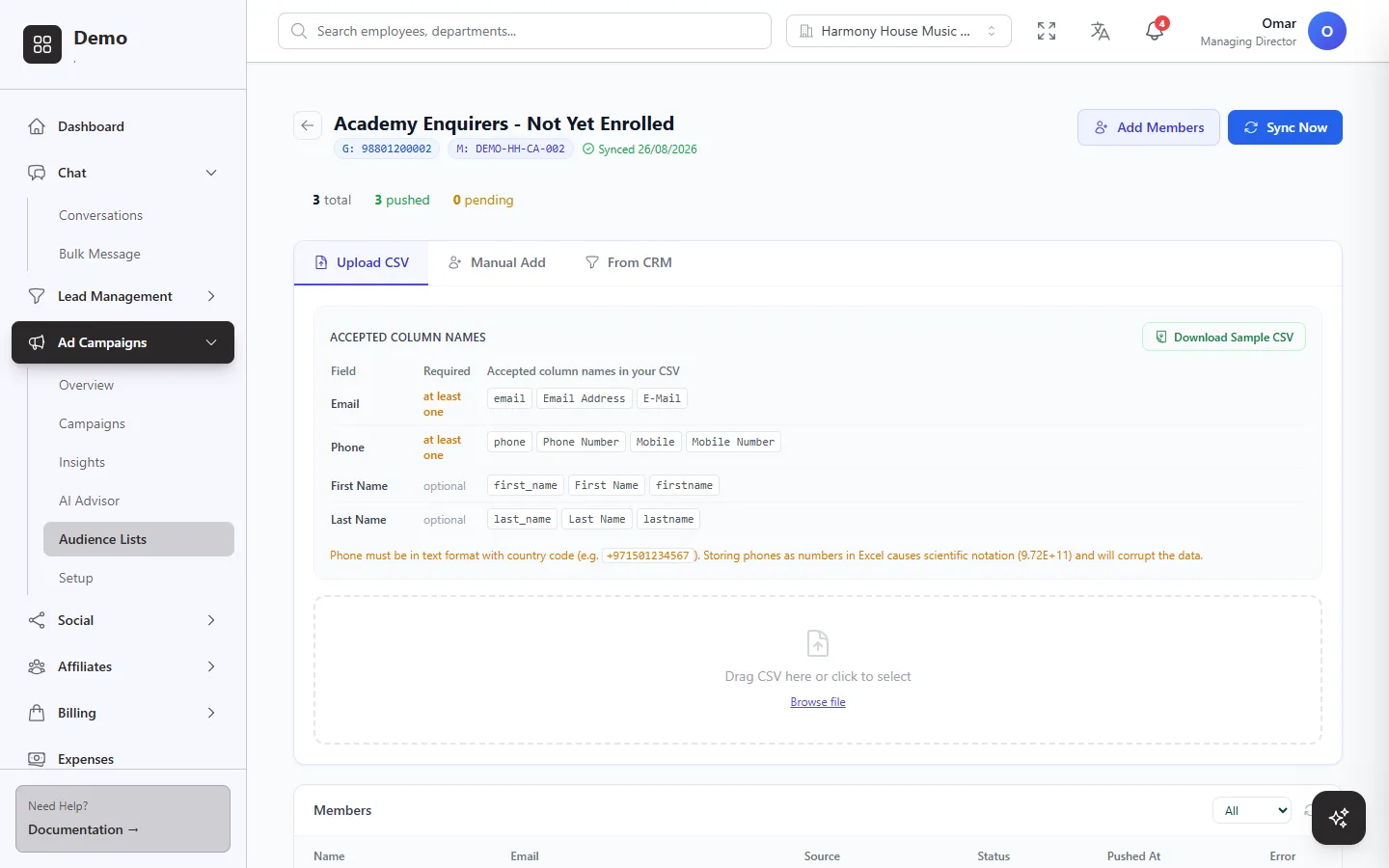 The upload screen lists the column names it accepts and warns about phone numbers saved as numbers in Excel.
Step 2: Create the list
Go to Ad Campaigns → Audience Lists and click New List. Give it a name you will recognise later, choose whether it is for Google, Meta or both, and pick the ad account for each. Lead10 creates the empty list on each platform straight away.
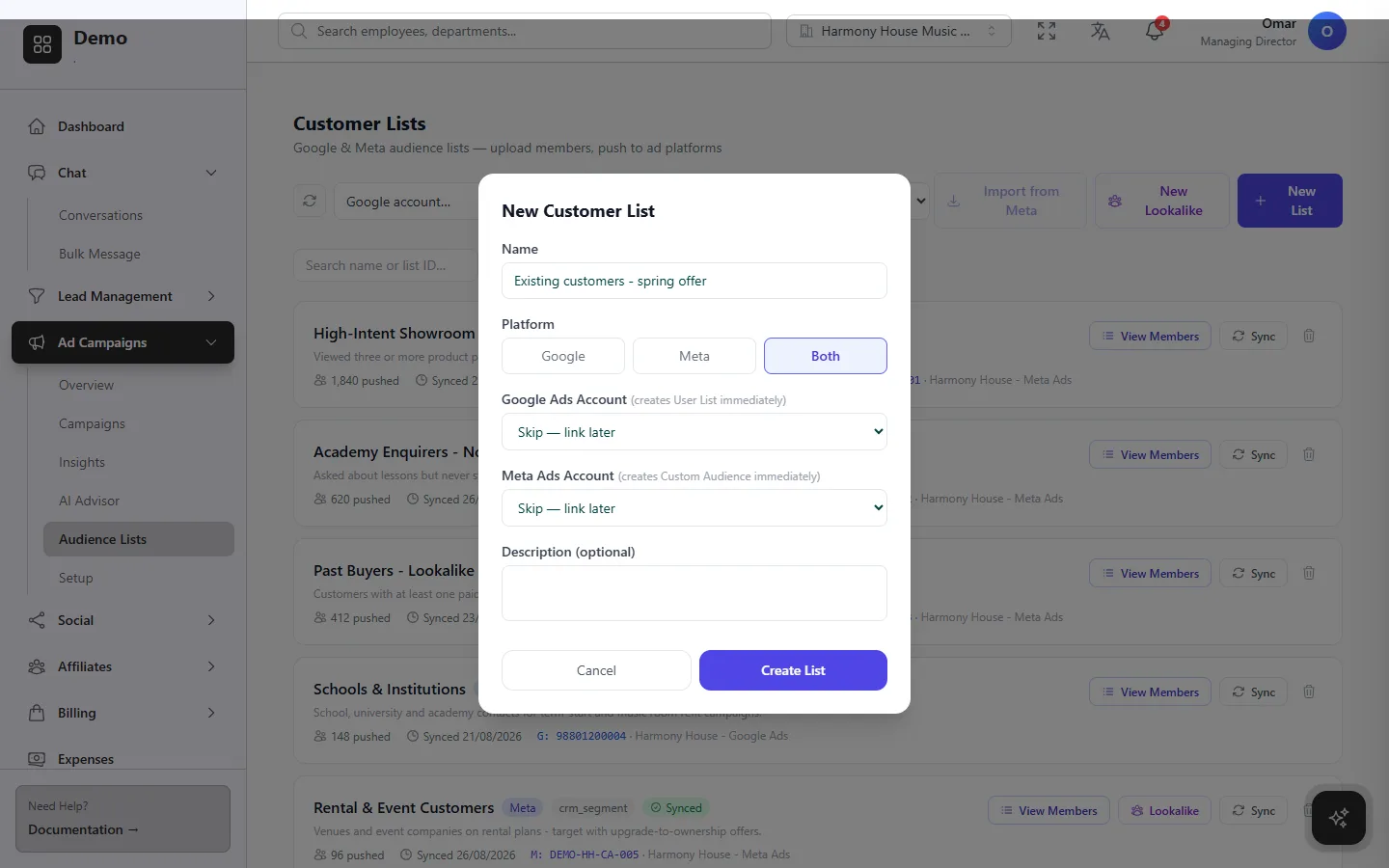 One list can feed both Google and Meta.
Step 3: Upload and check the preview
Open the list, click Add Members, choose Upload CSV and select your file. Lead10 shows a preview of what it read before anything is sent, and warns you about phone numbers or emails that cannot be used, so you can fix the file first. When the preview looks right, push the list to the ad platforms.
If your contacts are already in Lead10, you do not need a file: the From CRM tab builds the list from a segment of your CRM instead, and Lead10 can refresh it on a schedule.
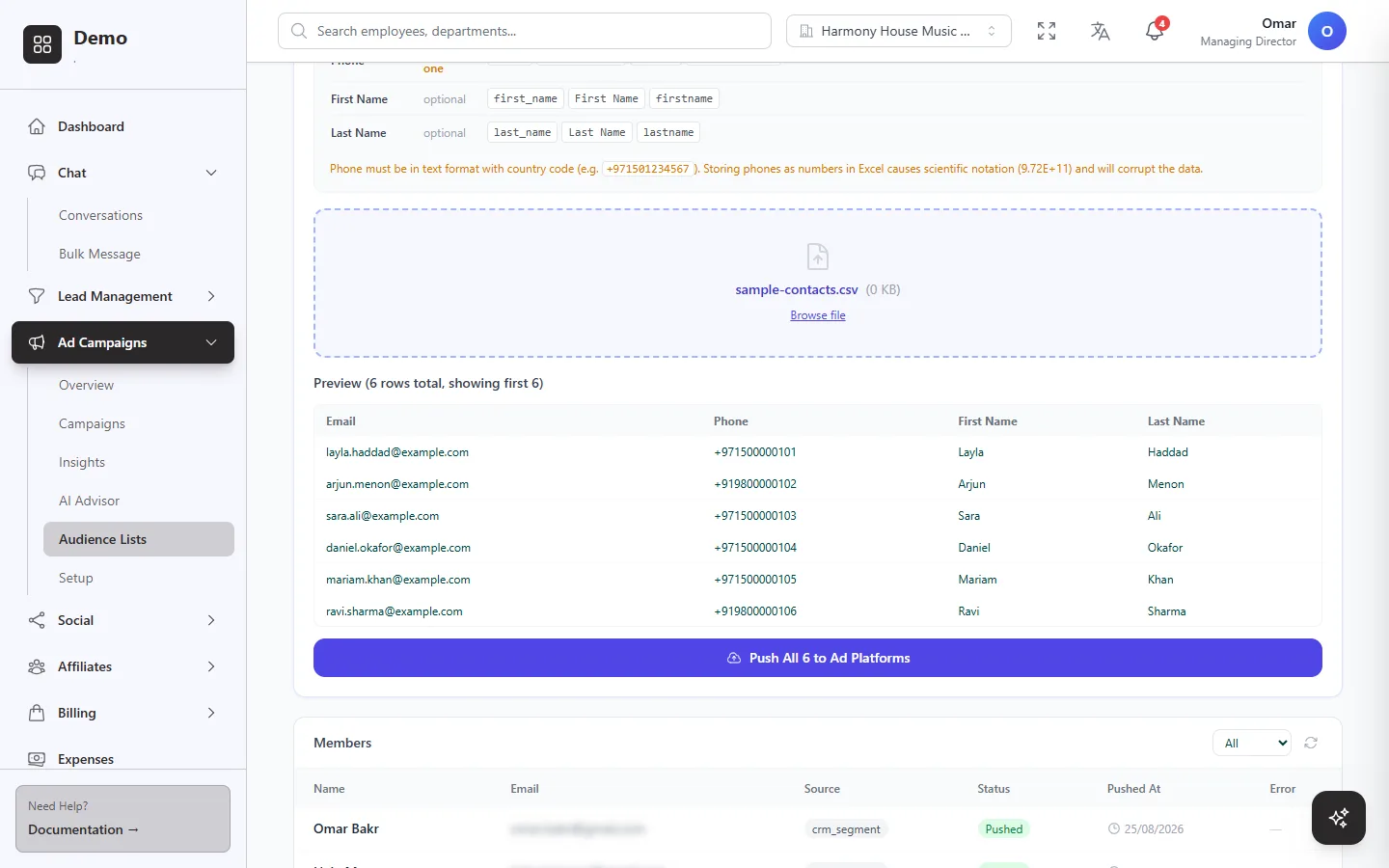 The preview shows exactly what was read from the file before anything is sent.
Step 4: Check who was sent
The list shows every member with a status. Pushed means the contact was sent to the platform; Failed comes with the reason, such as a contact with no usable email or phone number. Fix the contact and click Sync Now to send it again.
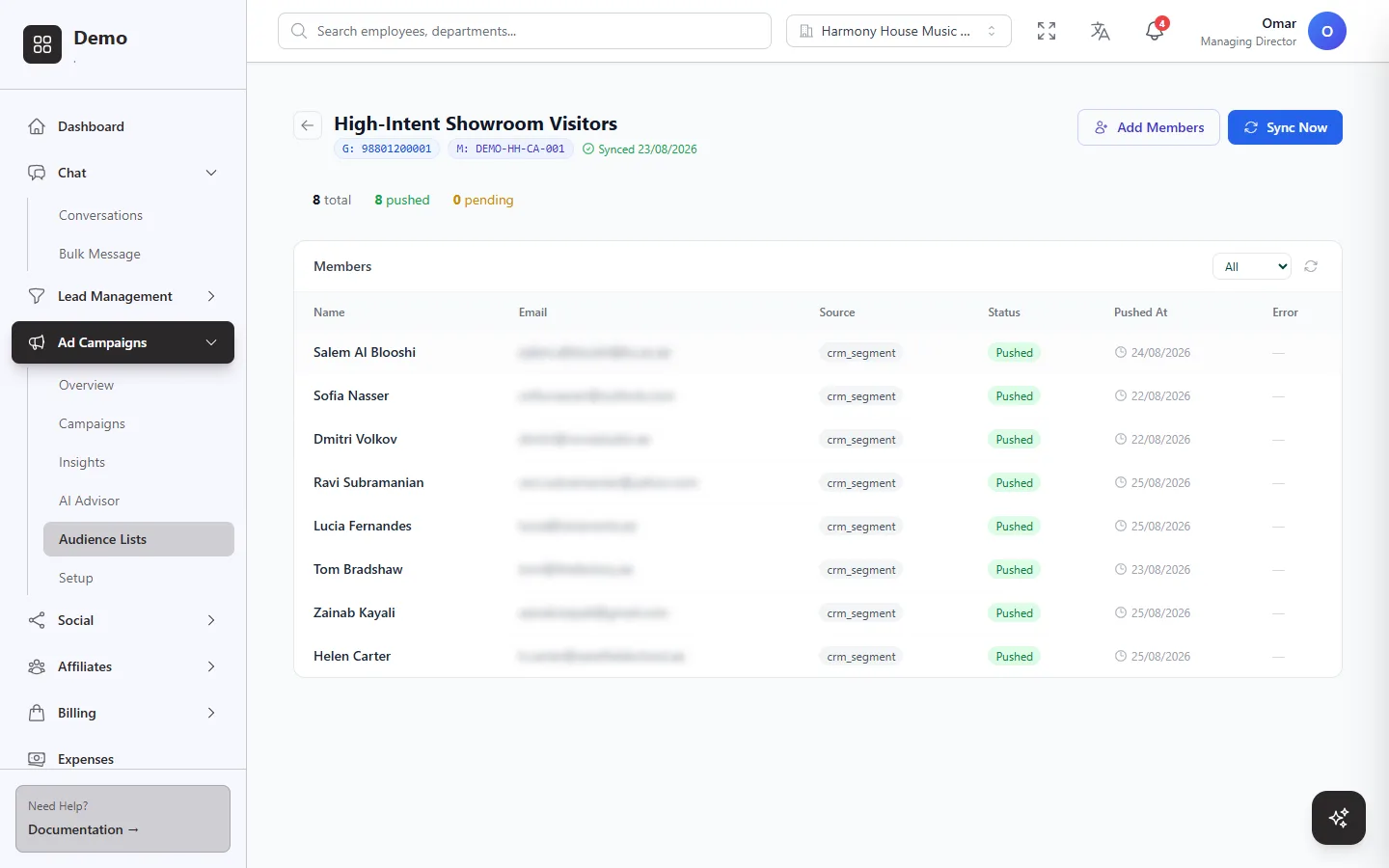 Every member has a status, so you can see who reached Google and Meta.
Step 5: Choose the list when you create the campaign
In Ad Campaigns → Campaigns → New Campaign, the Audience step has a Custom Audiences section. Open it and every list on the chosen ad account appears with the number of people the platform matched. Each list has three choices: Not used, Show to or Keep out. You can use several lists in one campaign, for example show the ad to enquirers who never enrolled and keep out people who already bought.
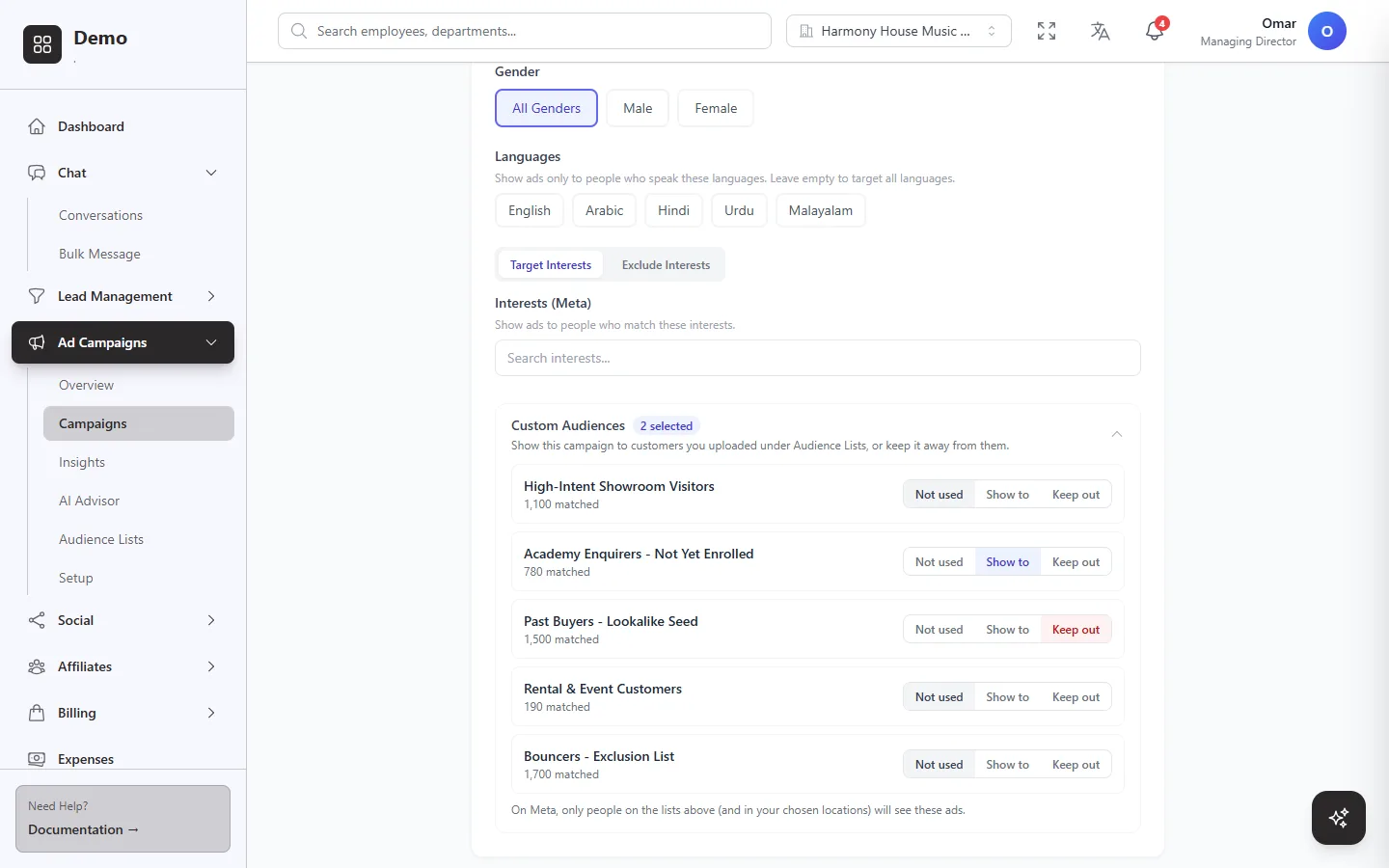 Pick, for each list, whether the campaign shows to it, keeps it out, or ignores it.
On Meta, a list set to Show to limits the ad set to people on that list, within your chosen locations. Keep the location broad and avoid adding interests on top: every extra filter shrinks an audience that is already small. Lead10 turns off Meta's automatic audience expansion on the ad sets it manages, so Meta does not widen the audience beyond your list.
On Google, the section also offers Show ads only to these customers. Ticked, only people on your lists can see the ads (Google calls this Targeting). Unticked, anyone who matches the rest of your targeting can see them, and Google only reports how your customers respond (Observation). If a list you show to is smaller than the platform needs, Lead10 warns you before you launch.
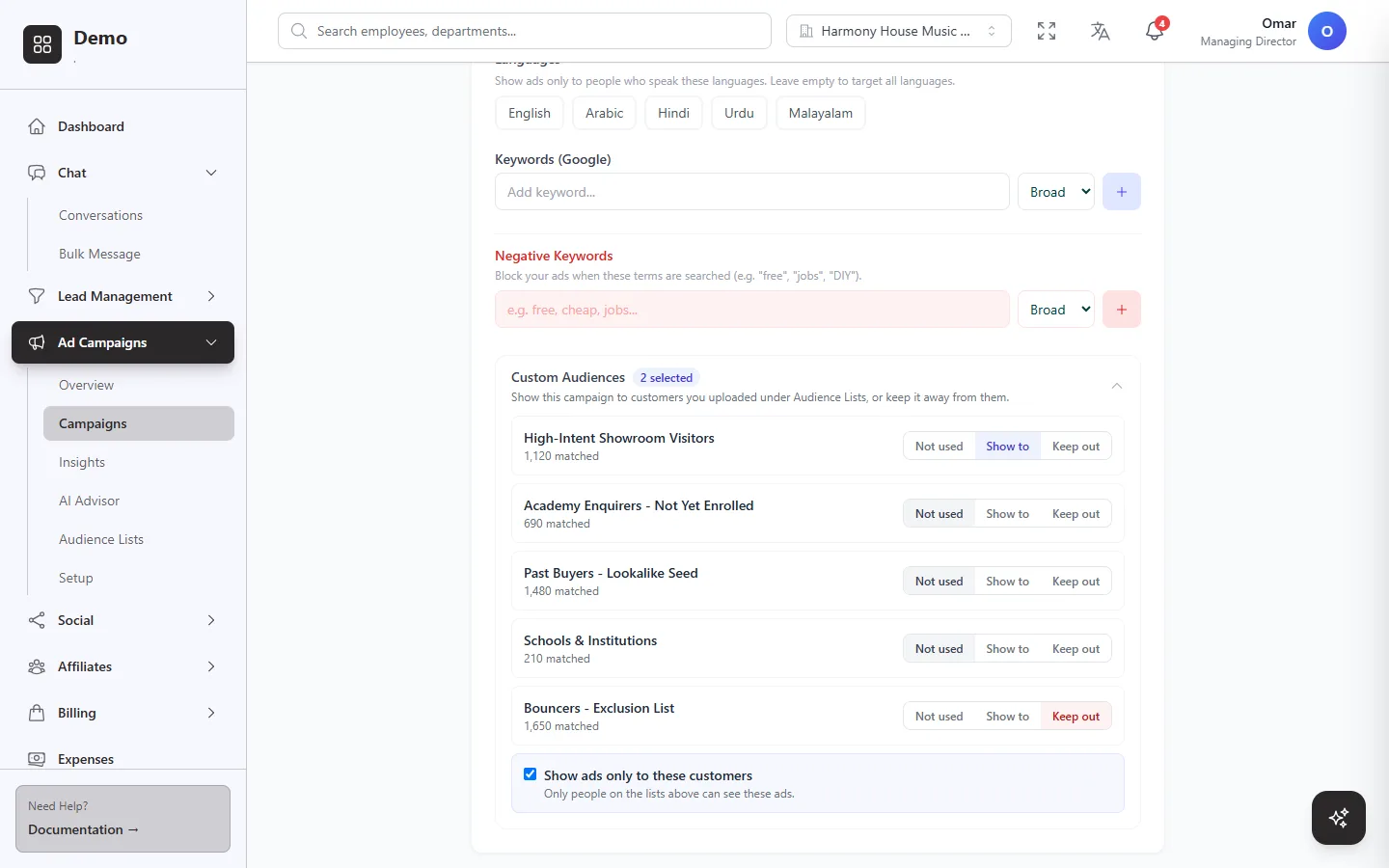 On Google, tick Show ads only to these customers, or the list is only observed.
The section is not offered for Performance Max and App campaigns, which have no ad groups to attach a list to. Use Search, Display, YouTube or Demand Gen campaigns for this: Performance Max treats a customer list as a hint about who to look for, not as a limit, so it would still show your ads to other people.
Step 6: Or add the list to a campaign that is already running
On Google, open the campaign, go to the Audiences tab, click Connect Audience, pick the list and choose Targeting — "only show to this audience". The default, Observation, still shows the ad to everyone and only reports on your list; Exclusion keeps the ad away from it.
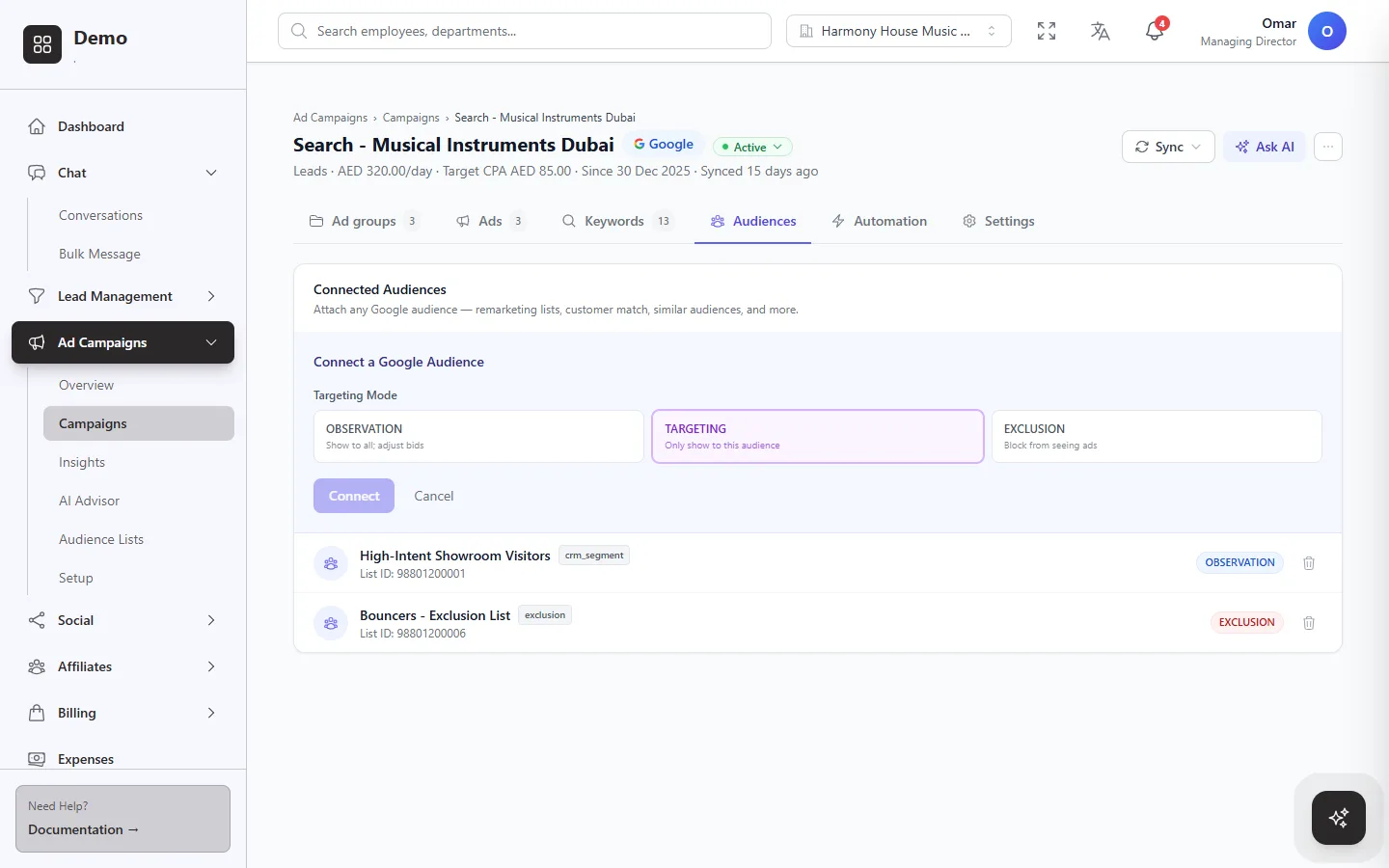 On Google, Targeting limits the campaign to your list; Observation only reports on it.
On Meta, open the campaign, choose Edit on the ad set, and under Custom Audiences pick the list and choose Include or Exclude. The next section shows this step by step.
How to exclude an audience
Excluding a list keeps your ads away from the people on it, while everyone else your targeting describes can still see them. It is the quickest way to stop wasting budget on people who will not act on the ad:
Existing customers in ads with a new-customer offer or a first-visit discount.
People who already booked or bought from the product the campaign promotes.
Contacts you never want to advertise to, such as staff, partners and suppliers.
Leads your team ruled out, such as enquiries marked as junk, built from a segment of your CRM.
Exclude a list from a new campaign
On the Audience step of Create Campaign, open Custom Audiences and set the list to Keep out. This works on both Google and Meta, and you can keep out one list while showing the campaign to another.
Exclude a list from a Meta ad set that is already running
Open the campaign and, on the ad set, choose Edit from its menu.
Scroll to Custom Audiences, pick the list and choose Exclude. Lead10 explains the choice: "Prevent ads from showing to people in this list."
Click Add Audience, then Save Draft.
The change is saved in Lead10 first. Choose Publish changes from the ad set's menu to send it to Meta.
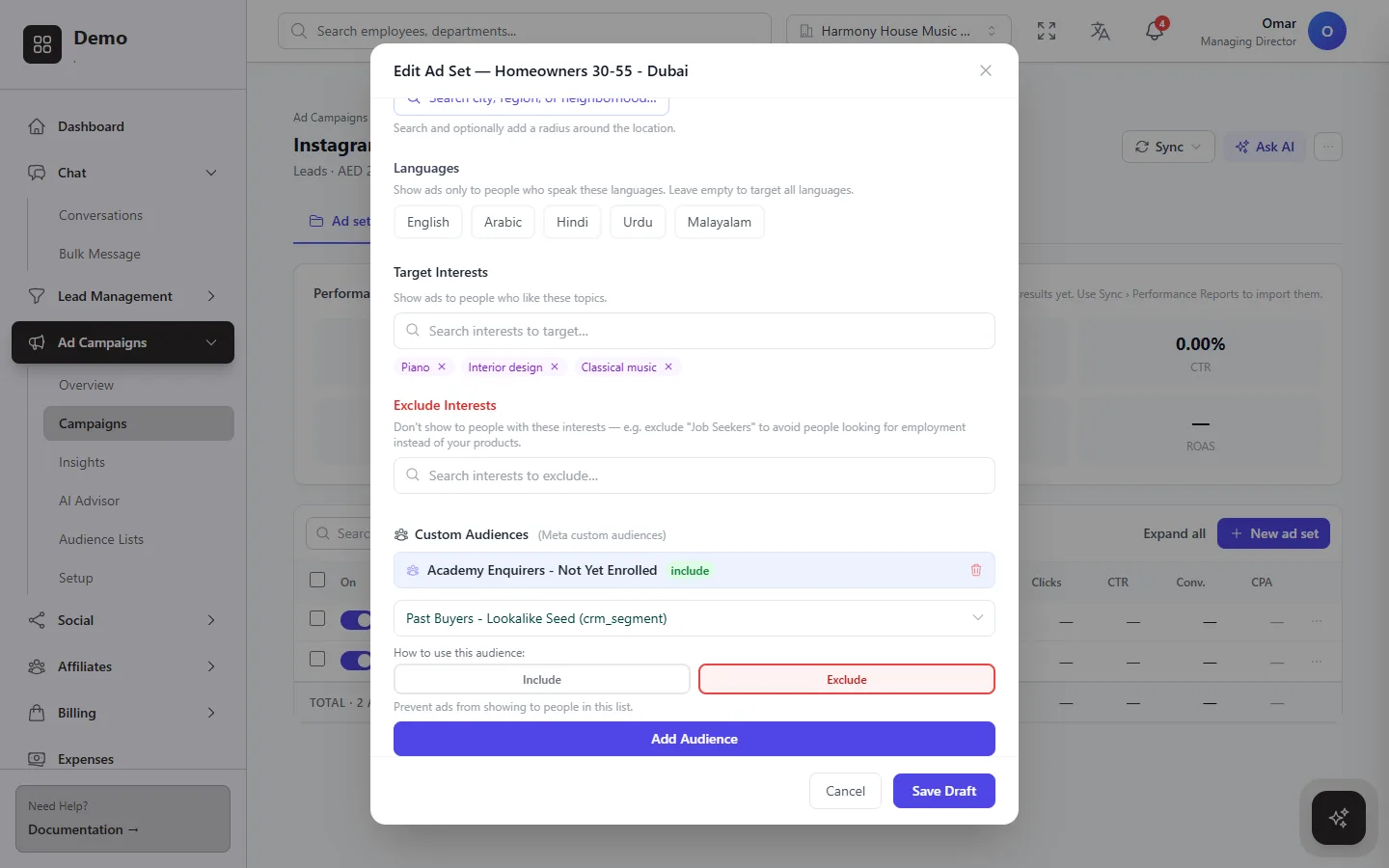 On a Meta ad set, every list is either included or excluded.
Exclude a list from a Google campaign that is already running
Open the campaign's Audiences tab, click Connect Audience, pick the list and choose Exclusion, as in Step 6.
What exclusion can and cannot do
It only reaches people the platform matched. Someone on your list whom Google or Meta could not match can still see the ad, so a high match rate matters for exclusions too.
Exclusion wins over inclusion. If a person is on a list you show to and on a list you keep out, they will not see the ad.
Keep the list fresh. A list built from a CRM segment can refresh on a schedule, so new customers are excluded without a new upload.
Check how many matched, and whether your customers saw the ads
Every list shows how many people you uploaded and how many Google and Meta matched, with the match rate. The matched number is the most a platform can ever reach with the list. Meta reports it as a lower bound, so Lead10 shows it with a plus sign.
Open a list to see Campaigns using this list: each campaign and ad set it is attached to, with people reached (Meta only), impressions, clicks and spend. Google and Meta never say which person saw an ad, so this is as close as the platforms allow. A list used in Observation is flagged, because those ads also show to people who are not on the list. The figures refresh daily, or when you click Sync Now.
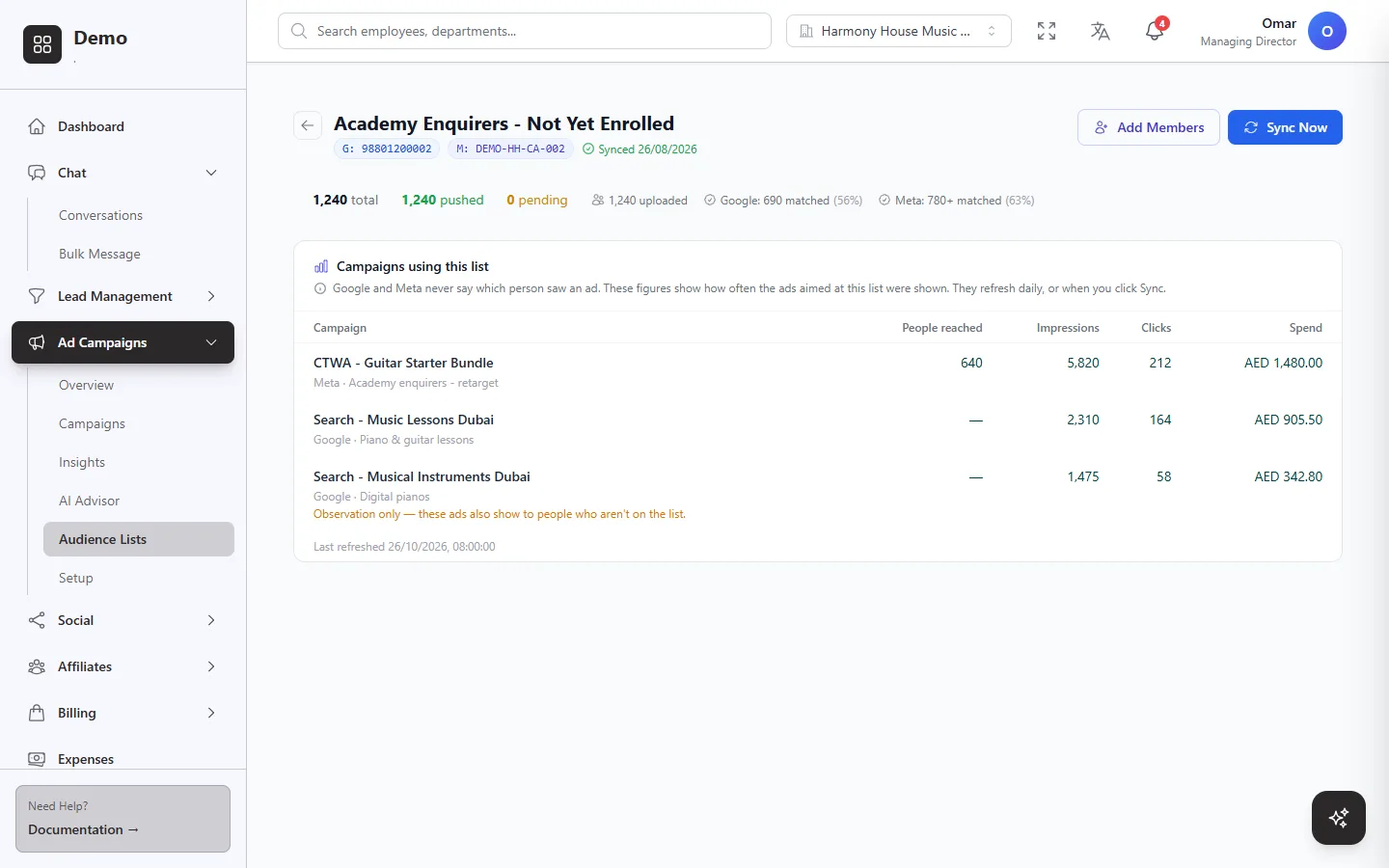 Matched size per platform, and how often the ads aimed at the list were shown.
What to expect
Not everyone will match. Platforms can only reach people they recognise, typically somewhere between a third and two thirds of a list. A list of 1,000 contacts might become an audience of 300 to 700 people.
Matching takes time. Allow from a few hours up to two days before the audience is ready to use and the matched size appears.
Small audiences see your ad often. Keep the budget modest and refresh the creative so the same people do not see the same ad every day.
Common mistakes to avoid
Phone numbers without a country code. They are read as numbers of your own country, so a foreign customer's number will not match.
Leaving Google on Observation. If Show ads only to these customers is unticked, the campaign keeps showing to everyone, and only the reports mention your list.
Stacking interests on a Meta list. Each extra filter removes more of the people you uploaded.
Uploading a tiny list. Below about 100 matched people (about 1,000 for Google Search and YouTube), the platform may not show your ad to the list at all.
Forgetting to exclude customers elsewhere. Set the same list to Keep out on ads meant for new customers.
Going further
Once a list of good customers is on Meta, Lead10 can use it as the seed for a Meta lookalike audience — new people who resemble your buyers. And if you also send your sales results back to the platforms, their bidding learns which ads bring real customers: see our guide to offline conversion tracking.
For the short version of this guide, read How do I show Google or Meta ads only to my own list of customers? and How do I stop my Google or Meta ads showing to existing customers?, or explore Ads Manager in Lead10.